Share this program with friends or teammates.
Duration: 50 Hours
Category: Designing
Type: Designing
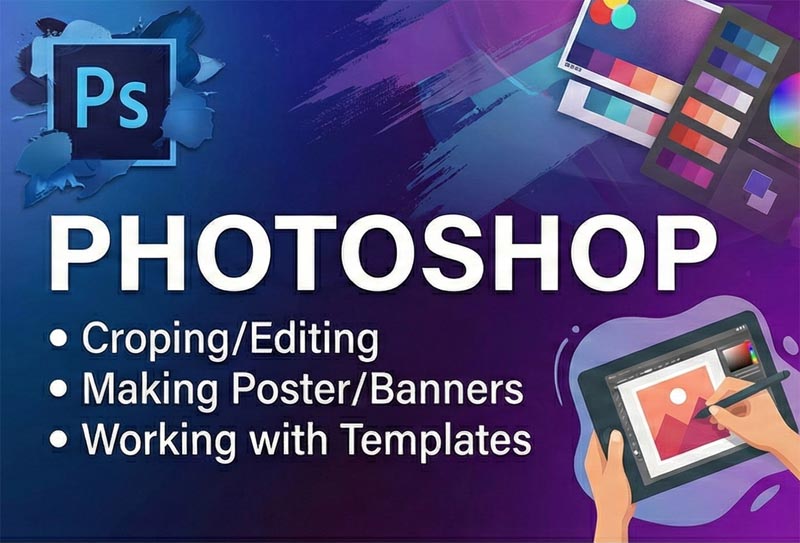
Module-wise curriculum for Photoshop
Learning Objectives
1. Getting Acquainted with Photoshop
The Photoshop Environment
Palettes and the Palette Well
Creating Custom Workspaces
Opening Images
Using the File Browser
Image Magnification
Viewing Document Information
Moving the Image
Undoing Mistakes and The History Palette
Displaying Drawing Guides
Making Measurements
Adding Annotations
Setting Preferences
2. Basic Image Manipulation
Bitmap Images
Vector Images
Image Size and Resolution Settings
Scanning Images
Creating New Images
Placing Files
3. Color Basics
Color Modes and Models
Color Mode Conversion
Previewing Color Differences Between Operating Systems
Color Management
Foreground and Background Colors
Using the color Picker
Selecting Colors with the Color Palette
Selecting Colors with the Eyedropper Tool
Selecting Colors with the Swatches Palette
4. Painting Tools
Painting Tools
The Brush Tools
Blending Modes
The Pencil Tool
The Eraser Tool
The Magic Eraser Tool
The back ground Eraser Tool
Using the Art History Brush
Using the History Brush
5. Brush Settings
Using the Brushes Palette
Creating Custom Brush Tips by Selection
Creating Custom Brush Tips in the Brushes Palette
Setting Shape Dynamics
Setting Brush Scattering
Setting Brush Texture
Setting Dual Brushes
Setting Color Dynamics
Setting Other Dynamics
Miscellaneous Brush Settings
Clearing Brush Settings
Saving a Customized Brush
Saving a Customized Brush Library
6. Making Selections
Selection Basics
Making Pixel Selections
The Marquee Tools
The Lesso Tools
The Magic Wand Tool
Selecting by color Range
Adjusting Pixel Selections
The Extract Command
Copying and Pasting Pixel Selections
Saving and Loading Selections
7. Filling and Stroking
Applying Fills
Using the Paint Bucket Tool
Using the Gradient Tool
Using Patterns
Using the Pattern Maker
Stroking
8. Layers
Using Layers and Layer Sets
Creating Layers and Layer Sets
Stacking and Linking Layers
Moving Layer Content with the Move Tool
Locking Layers
Common Layer Management Tasks
Merging and Flattening Layers
9. Advanced Layers
Layer Styles
Adjustment Layers and Fill Layers
Masking Layers
Creating Clipping Groups
Creating Knockouts
10. Text
Text Basics
Entering Text
Selecting Text
Editing the Bounding Box
Creating a Type Selection
Applying Effects to Type Layers
Using the Character Palette
Checking for Spelling Errors
Using the Paragraph Palette
11. Drawing
Raster Vs. Vector
Shape Layers and Shape Tools
Using the Shape Tools
Using the Pen Tools
Using the Pen Tools
Using the Anchor Point Tools
Using the Paths Palette
Working with Paths
12. Using Channels and Masking
Using the Channels Palette
Using Channels and Layers
Masks
Using Alpha Channels
13. Manipulating Images
Changing the Canvas Size
Rotating and Flipping Images
Cropping Images
The Free Transform Command
The Smudge Tool
Blurring and Sharpening Images
Using the Dodge Tool and the BurnTool
The Sponge Tool
Filters and The Filter Gallery
The Liquify Command
The Clone Stamp Tool
The Pattern Stamp Tool
The Healing Brush Tool
The Patch Tool
The Color Replacement Tool
14. Getting to Know the Work Area
Starting to Work in Adobe Photoshop
Using the tools
Using the tool options bar and other palettes
Undoing actions in Photoshop
Customizing the workspace
Jumping to Adobe Image Ready
Using Photoshop Help
Using Adobe online Services
Toolbox overview
15. Using Adobe Bridge
Viewing and editing files in Adobe Bridge
Embedding information for easy identification
Searching with Adobe bridge
Using Favorites and Collections
Automating routine tasks
Acquiring stock photography
16. Basic Photo Corrections
Strategy of retouching
Resolution and image size
Getting started
Straightening and cropping an image
Making automatic adjustments
Manually adjusting the tonal range
Removing a color cast
Replacing colors in an image
Adjusting the Unsharp Mask filter
Comparing automatic and manual results
Saving the image for four-color printing
17. Retouching and Repairing
Repairing areas with the Clone Stamp tool
Using the Spot Healing Brush tool
Using the Healing Brush and Patch tools
Retouching on separate layer
18. Working with Selections
About selecting and selection tools
Selecting with the Magic Wand tool
Using the Magic Wand with other selection tools
Working with oval and circular selections
Selecting with the lasso tools
Rotating a selection
Selecting with the Magnetic Lasso tool
Cropping an image and erasing within a selection
19. Layar Basics
About Layers
Using the Layers Palette
Rearranging layers
Applying a layer style
Flatting and saving files
Photoshop for Kids
20. Masks and Channels
Working with masks and channels
Creating a quick mask
Editing a mask
Loading a mask as a selection and applying an adjustment
Extracting an image
Applying a filter effect to a masked selection
Creating a gradient mask
Applying effects using a gradient mask
21. Correcting and Enhancing Digital Photographs
About Camera raw
Processing camera raw
Processing camera files
Correcting digital photographs
Editing images with a vanishing-point perspective
Correcting image distortion
Creating a PDF portfolio
22. Typographic Design
Creating a clipping mask from type
Creating a design element from type
Using interactive formatting controls
Warping point type
Designing a paragraph of type
Warping a layer
Review questions and answers
Dancing with Type
23. Vector Drawing Techniques
About bitmap image s and vector graphics
About paths and the pen tool
Using paths with artwork
Creating scalable objects for the background
Working with defined custom shapes
Importing a Smart Object
24. Advanced Layer Techniques
Creating paths to clip a layer
Creating layer sets
Creating an adjustment layer
Creating a knockout gradient layer
Importing a layer from another file
Applying layers styles
Duplicating and clipping a layer
Liquifying a layer
Creating a border layer
Flattening a layered image
25. Vector Compositing
Automating a multistep mask
Setting up a four-image montage
Hand-coloring selections on a layer
Changing the color balance
Applying filters
26. Creating Links Within an Image
Slicing and image in Photoshop
Jumping to Image Ready
Creating image maps in ImageReady
Saving linked images in an HTML file
27. Creating Rollover Web Visuals
About rollovers
Creating rollover states
Creating remote rollovers
Saving the page as HTML
28. Animating GIF Images for the Web
Creating animations in Adobe Image Ready
Animating by hiding and showing layers
Animating with layer opacity and position
Using vector masks to create animations
29. Producing and Printing Consistent Color
Reproducing colors
Specifying color-management settings
Proofing an image
Adjusting an image and printing a Proof
Saving the image as a separation
Printing